

A role is a named collection of permissions; a permission is a single-allowed action, such as reading a work order or approving a purchase. Get one thing right before anything else: design roles around the principle of least privilege, granting only what a job function genuinely needs, and automate assignment through groups rather than one-off manual edits. Everything else in access governance builds on that foundation.
TL;DR:
- Role design should start with basic templates like administrator, manager, technician, and viewer, and only create custom roles for recurring, specific needs.
- Assign roles through group membership synced from your identity provider to ensure automatic updates and reduce manual management errors.
- Permissions must be enforced consistently across user interface, API, and data layer to prevent hidden backdoors or scope violations.
- Regular access reviews, including onboarding, offboarding, and quarterly attestations, are essential to maintain least privilege and audit compliance.
- FullyOps embeds role-based access control into its platform, simplifying scope management and reducing the risk of over-permissioning in maintenance workflows.
Table of Contents
- What are roles and permissions in access control?
- Where do access controls actually apply?
- Which role types should you actually use?
- How do you design roles that stay manageable?
- How should you assign roles to users, groups and machines?
- What does a proper permission review and audit process look like?
- What role and permission checklist works for CMMS and field-service teams?
- How does FullyOps put roles and permissions into practice?
- Simpler role sets or fine-grained custom roles: what’s the right call?
- Try roles and permissions built for maintenance teams
- Where to go for the technical detail this guide simplified
- Sources
- FAQ
What are roles and permissions in access control?
Papéis e permissões form the backbone of any access control model, and the distinction between the two trips up more administrators than it should. A permission is an atomic action: read, create, update, delete or approve a specific resource. A role is simply a named bundle of those permissions, built so you can assign one label instead of dozens of individual grants every time someone joins the team.
Role-based access control (RBAC) works by mapping real business actions onto permissions, then grouping those permissions into roles that mirror how people actually work. According to Logto’s RBAC documentation, the standard action set covers read, create, update, delete and approve, though platforms sometimes add variants like export or reassign for specialised workflows.
When a person holds more than one role, most systems calculate their effective access as the union of every permission across those roles. Hold a “Technician” role and a “Stock Handler” role, and you get everything both grant, combined.
A few concepts you need in your working vocabulary:
- Permission code: a machine-readable string like
work_orders:approve, pairing a resource with an action. - Scope: the boundary a permission applies within, such as a branch, project or namespace.
- Resource: the object being acted on, whether that’s an API endpoint, a UI panel or a data partition.
- Binding: the link that attaches a role to a subject, be that a user, a group or a service account.
- Effective permissions: the final set a subject actually holds, after combining every role and scope.
Get this vocabulary straight early, because every governance decision downstream depends on being precise about whether you’re changing a role, a permission, or a scope.
Where do access controls actually apply?
Permissions rarely live in just one place. A single rule like “can approve inventory requests” might need enforcing in the mobile app, the admin console, the REST API, and the underlying database, all at once, and each layer behaves differently.
UI gating hides or disables buttons and menus based on a user’s role. It’s the layer people notice first, but it’s also the weakest on its own, because a user who can inspect network requests or call the API directly can sometimes bypass a control that only exists in the interface.
API permission parity means every action available in the UI is governed by the identical permission check when called directly through the API. This matters enormously for automation: if a technician’s mobile app respects work_orders:update but the integration layer doesn’t check the same code, you’ve created a silent backdoor for scripts, webhooks or third-party tools.
Data-plane enforcement sits underneath both. Row-Level Security policies and server-side checks confirm that even a compromised session or a misconfigured API key can’t reach records outside its scope. Good implementations sync a permission registry down to the database layer rather than trusting frontend logic alone.
Practical resource:action mappings look like this in a maintenance context:
work_orders:read— view existing work orders without editing them.work_orders:approve— sign off a completed job before it closes.inventory:update— adjust stock counts after a parts withdrawal.reports:export— pull operational data out of the platform.
The reason API parity matters so much is that once you connect a CMMS to an ERP, a scheduling tool, or a mobile app, every integration point becomes a new attack surface if permissions aren’t enforced consistently across UI, API and data plane.
Which role types should you actually use?
Not every job function needs a bespoke role, and building fifty custom roles for a fifteen-person team creates its own kind of chaos. Three role types cover almost every real scenario:
- Basic or global roles. These are broad, legacy-style grants, often something like “Admin” or “Everyone,” that apply the same wide permission set across an entire organisation. They’re fast to set up and painful to unwind later, because they tend to accumulate access nobody remembers granting. Use them sparingly and only for the smallest teams where the operational risk of over-permissioning is genuinely low.
- Predefined or vendor roles. Most platforms ship built-in roles designed to cover common personas out of the box. Cloud providers illustrate this well: Azure’s built-in roles include Reader, Contributor and Owner, each with a clearly defined action set that acts as a usable template even outside the cloud world. The convenience is real, but so is the risk of oversharing when a predefined role grants slightly more than a specific team actually needs.
- Custom roles. Built from scratch to match exact job requirements, custom roles are the correct tool once your organisation has more than a handful of distinct job functions. Google Cloud IAM allows organisations to define many custom roles per project specifically to support fine-grained least-privilege design.
For a maintenance operation, four custom roles usually cover most needs:
- Administrator: full configuration rights, user management, and billing access, held by very few people.
- Manager: approval authority over work orders and budgets, visibility across teams, no system configuration rights.
- Technician: read and update access on assigned work orders, no approval or deletion rights.
- Viewer: read-only access to dashboards and reports, for stakeholders who need visibility without any editing capability.
Start from one of these four templates and adjust scope, not the permission set itself, whenever a new job title appears.
How do you design roles that stay manageable?
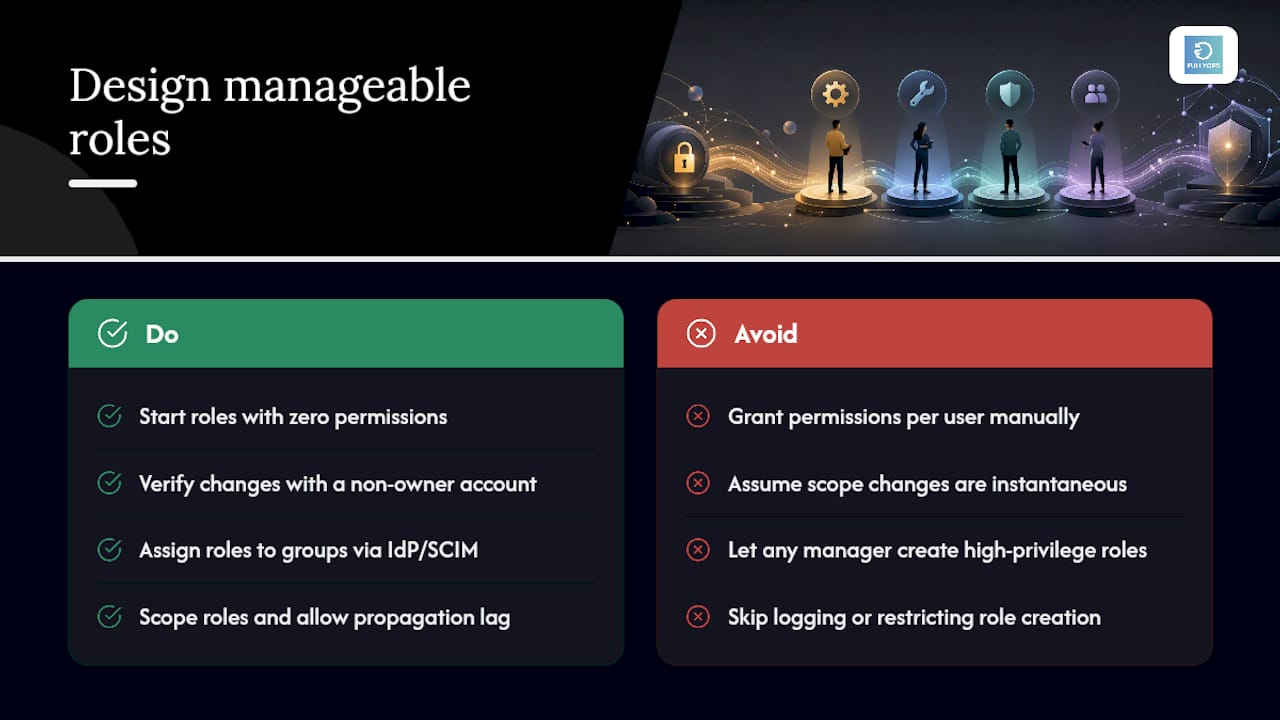
Least privilege isn’t a slogan, it’s a starting position: every new role begins with zero permissions, and you add only what the job function demonstrably requires. Testing that assumption matters too. OpenAI’s RBAC guidance recommends verifying access using a non-owner account after any role change, precisely because it’s easy to assume a permission set works when you’re testing it as an administrator with full rights anyway.
Groups, not individuals, should be the unit you assign roles to. Sync groups from an identity provider (IdP) using SCIM or a similar protocol, and role assignment becomes a matter of moving someone between groups rather than editing permissions by hand for every new hire. This single habit is probably the biggest lever for reducing long-term admin overhead, because manual per-user grants are exactly where entitlement creep starts.
Scoping filters add another dimension. Restricting a role by branch, cost centre, or namespace lets you reuse the same role definition across multiple business units without duplicating it. A “Technician” role scoped to “Branch: Porto” and another scoped to “Branch: Lisboa” share identical permissions but see entirely different data.
One caution worth building into your rollout plans: scope changes aren’t always instant. Platform-specific filter updates can take a few minutes to fully propagate to active sessions, so don’t assume a change has failed just because a user’s dashboard hasn’t updated within seconds. When you’re scheduling anything involving critical scope changes, plan for that lag rather than discovering it during a live incident.
Privilege escalation is the risk hiding underneath all of this. If any manager can create new roles or assign high-privilege ones, you’ve effectively removed the barrier that least privilege was supposed to build. Restrict role creation and high-privilege assignment to a small, named group of administrators, and log every change.
Pro Tip: Before granting a role, ask what the worst outcome is if that person’s account is compromised tomorrow. If the answer involves financial approval, data export, or system configuration, that role belongs to fewer people than you currently have holding it.
How should you assign roles to users, groups and machines?
Assignment patterns matter as much as the roles themselves, because a well-designed role handed out through sloppy assignment habits still creates risk.
- Assign to groups, not individuals. Sync organisational structure from your IdP so group membership, not manual role edits, drives access. When someone changes teams, moving them between groups updates their access instantly and consistently.
- Use service accounts for machine-to-machine access. Integrations, scripts and automated reports shouldn’t run under a human’s credentials. Give each integration its own service account, scoped narrowly, with a limited token lifetime rather than a permanent key that outlives whoever set it up.
- Understand binding constructs. Kubernetes RBAC offers a useful mental model even outside the container world: a
Roleis scoped to a namespace, aClusterRoleapplies more broadly, and aRoleBindingis what actually attaches that role to a subject. Most enterprise platforms echo this pattern with organisation-level and project-level or branch-level equivalents. - Test the union of roles before rollout. Kubernetes RBAC permissions are additive, with no deny rules, meaning a user’s final access is always the sum of every role bound to them. Before deploying a new role, check what it combines with for users who already hold something else, because unexpected combinations are where over-permissioning quietly slips in.
Getting assignment patterns right upfront saves you from the much harder job of untangling access months later, once dozens of individual exceptions have piled up on top of the original role design.
What does a proper permission review and audit process look like?
Governance is where role design either holds up over time or slowly decays into the same tangled mess you were trying to avoid. A working lifecycle needs four checkpoints:
- Onboarding. Grant the minimum viable role for the job on day one, not a “we’ll trim it later” broad grant. If someone needs temporary elevated access for a specific task, use a time-boxed approval workflow with automatic expiry rather than handing out a standing admin account.
- Offboarding. Revoke every role immediately on departure, rotate any API keys or service account credentials that person had access to, and disable rather than delete their account until any pending audit trail is closed out.
- Periodic attestation. Have managers formally reconfirm, on a set cadence, that each person under them still needs the access they currently hold. Quarterly reviews work well for high-privilege roles; twice a year is usually sufficient for standard technician or viewer roles.
- Audit logging. Every role change, permission grant, and access attempt should generate a log entry that ties back to a specific admin action, giving you the evidence trail compliance reviews and incident investigations both depend on.
Limiting who can create or close work orders through role configuration has a measurable side effect: it reduces training overhead and accidental errors simply because fewer people are exposed to actions they weren’t trained to perform. That’s a governance benefit as much as a security one.
One more practitioner note worth carrying into your rollout plan: scope and filter changes don’t always propagate instantly across every session, so build a short verification step into any critical access change rather than assuming it’s live the moment you save it.
What role and permission checklist works for CMMS and field-service teams?
Translating all of this into a maintenance context comes down to matching four job functions to a minimal, well-scoped role each.
- Technician:
work_orders:read,work_orders:updateon assigned jobs only, no approval or deletion rights, no access to billing or user management. - Dispatcher:
work_orders:create,work_orders:readacross the full schedule,scheduling:update, but no permission to approve budgets or edit inventory levels. - Supervisor: everything a technician and dispatcher hold, plus
work_orders:approveandreports:readacross their assigned branch or region. - Inventory clerk:
inventory:read,inventory:update,inventory:approvefor stock adjustments, with no visibility into work order approvals or scheduling.
Mobile app restrictions should mirror desktop console privileges exactly, not loosely approximate them. If a technician can’t approve a work order from the office console, they shouldn’t be able to trigger the same action through a mobile shortcut either; that’s exactly the kind of UI/API mismatch that creates silent gaps.
| Role | Core permissions | Typical scope |
|---|---|---|
| Technician | work_orders:read, work_orders:update | Assigned jobs only |
| Dispatcher | work_orders:create, work_orders:read, scheduling:update | Branch or region |
| Supervisor | work_orders:approve, reports:read | Branch or region |
| Inventory clerk | inventory:read, inventory:update, inventory:approve | Warehouse or site |
Aligning permission codes this precisely does more than tidy up your admin console. It shortens onboarding time, because a new technician’s access matches their job description exactly rather than a rough approximation, and it removes the guesswork field managers otherwise face when someone asks “can I actually do this?”
How does FullyOps put roles and permissions into practice?
FullyOps builds role-based access directly into its work order and asset management platform, so the patterns covered above aren’t theoretical for teams already running a CMMS. The platform separates access by operational function rather than treating every logged-in user identically.
Relevant capabilities include:
- Role scoping tied to specific branches, teams or asset groups, so a supervisor in one facility doesn’t see work orders from another by default.
- Distinct permission tiers for technicians, administrators and managers, matching the job-function templates described earlier in this guide.
- Admin console controls for granting, reviewing and revoking access without needing to touch individual user records one by one.
- Integration support that keeps permission checks consistent between the work order management workflow, the mobile technician view, and connected systems.
A typical scenario: a facilities company running FullyOps across three sites assigns a “Technician” role scoped to each site’s asset list, a “Supervisor” role with approval rights over that site’s work orders, and an “Administrator” role held only by the operations manager overseeing all three. Field staff working through field service management tools see only what their scope permits, which keeps the interface simple without compromising oversight at the management layer.
Simpler role sets or fine-grained custom roles: what’s the right call?
Most teams over-engineer their first role model. They read about custom roles, get excited about granularity, and end up with fifteen roles for a team of twelve people, half of which nobody can explain six months later.
Start with the four basic personas: admin, manager, technician, viewer. Only fork a new custom role when you can point to a specific, recurring situation the existing four don’t cover, not because a theoretical edge case might someday exist. Granularity has a real cost: every additional role is another thing a new hire’s manager has to understand correctly when they’re filling out an access request.
Training matters more than most governance plans admit. A well-designed role model fails if the person requesting access doesn’t know which role to ask for, so a one-page runbook mapping job titles to roles saves more confusion than another layer of permission logic ever will.
The teams that keep this sustainable long-term are the ones who treat access review as a scheduled, low-effort habit rather than an annual scramble, automating attestation reminders so nobody has to remember to run them manually.
— Pedro
Try roles and permissions built for maintenance teams
Building a role model from scratch inside a general-purpose platform means fighting the tool to get branch scoping, technician-level restrictions, and approval workflows working the way maintenance operations actually need them to. FullyOps is built the other way round: work order permissions, technician scoping, and admin controls are native to the platform from day one, so you’re configuring roles for your operation rather than retrofitting access rules onto software that wasn’t designed for field service.
FullyOps offers Basic, Professional, and Advanced plans, each structured around different feature combinations for various user roles, so you can match your plan to your team’s needs. For current pricing details, please visit FullyOps’s pricing page. If the checklist above raised questions about how your current setup handles scoping or offboarding, the fastest way to see the difference is to try FullyOps free and configure a role for your own team in minutes.
Where to go for the technical detail this guide simplified
The role and permission concepts covered here draw on established access control documentation, and it’s worth consulting the primary sources directly whenever you need exact permission codes or API syntax for your own stack.
- Logto’s RBAC documentation for foundational role and permission definitions.
- OpenAI’s RBAC developer guide for group syncing and non-owner verification practices.
- Kubernetes RBAC authorization docs for role binding and scope constructs.
- Azure’s built-in roles reference for real-world examples of predefined permission groupings.
- Google Cloud IAM roles overview for custom role design at scale.
Vendor documentation changes faster than any article can track, so always confirm exact permission codes and API behaviour against your specific platform’s current docs before deploying a change.
Sources
- Use o controle de acesso baseado em funções (RBAC) | OpenAI developer docs
- Azure built-in roles | Microsoft Learn
FAQ
What is the difference between a role and a permission?
A permission is a single allowed action, like updating a work order or approving a purchase. A role is a named bundle of permissions assigned to a person or group, built so administrators can grant access in one step rather than listing dozens of individual permissions every time.
What is the principle of least privilege?
It means granting only the permissions a role strictly needs to do its job, nothing extra “just in case.” OpenAI’s RBAC guidance recommends starting from zero permissions and adding only what’s demonstrably required, then verifying access with a non-owner account.
Should I assign permissions to users or to groups?
Assign to groups whenever possible, syncing group membership from your identity provider so access updates automatically when someone changes teams. Assigning permissions to individual users one by one is the pattern most likely to create untracked exceptions over time.
How often should access permissions be reviewed?
Quarterly reviews work well for high-privilege roles like administrator or manager, while standard technician or viewer roles can usually be reviewed twice a year. The right cadence depends on how sensitive the data or actions behind each role are.
Does FullyOps support role-based access for maintenance teams?
Yes. FullyOps offers branch-scoped roles and distinct permission tiers for technicians, managers and administrators, letting operations teams match access to job function across the work order management workflow and connected field service tools.
Recommended
- Asset Maintenance Workflow Guide for Optimal Efficiency
- Maintenance Planning Step by Step: Cut Downtime by 30%
- Boost efficiency with maintenance auditing: a complete guide
- Master Creating Maintenance Schedules for Reliable Assets