

You can turn any PDF or form field into a signable one, then sign it with the Chave Móvel Digital or Cartão de Cidadão. Both produce digital signatures with the same legal weight as a handwritten one under eIDAS Regulation 910/2014. The fastest route is to create the field, then sign it via CMD in your browser or CC with a card reader, in a single session.
TL;DR:
- Digital signature fields must be configured to accept cryptographic certificates, not just images or stamps, to ensure legal recognition.
- Signing with Chave Móvel Digital requires an active account, a signature PIN, and selecting CMD during the signing process in compatible browsers or apps.
- Cartão de Cidadão signing demands installation of middleware, a valid certificate on the card, and a compatible card reader or app, with certificate validity checked beforehand.
- Activation for both signatures involves registering on official portals with phone and email confirmation, and should be completed before signing under pressure.
- Verifying a signed PDF involves checking the certificate chain, timestamp accuracy, and validation through official portals to confirm document integrity.
Table of Contents
- How do you create a digital signature field in a PDF?
- How do you sign with Chave Móvel Digital?
- How do you sign with Cartão de Cidadão?
- How do you activate CMD or enable Cartão de Cidadão signing?
- How do you validate a signed PDF’s integrity?
- Why do digital signatures fail, and how do you stop it happening?
- Why field teams benefit from proper digital signature workflows
- Where can you find the official signing and validation portals?
- Digital signing as part of a bigger operational habit
- Sources
- FAQ
How do you create a digital signature field in a PDF?
Creating an assinatura digital campo, the signable field a signer clicks to apply their credentials, is the first job. Get this wrong and CMD or CC signing will simply fail at the last step, so it pays to set it up properly the first time.
Three types of tool handle this reliably: browser-based form builders built into government and business portals, PDF editors such as Acrobat or compatible alternatives, and dedicated online PDF services that support fillable forms. Any of these can insert a field that accepts a cryptographic certificate, not just a scribbled image of a signature.
The process itself follows a consistent pattern regardless of tool:
- Open the document in your chosen editor and locate the form or signature tool in the menu.
- Draw the signature field where you want the signer to sign, sizing it clearly enough that it won’t be mistaken for a stray text box.
- Set its properties: give it a distinct name, mark it required or optional, and decide whether it stays visible after signing.
- Save a test copy separate from the version you intend to send out.
- Sign that test copy yourself with a sample certificate to confirm the field actually accepts a digital signature rather than just a static image.
A field created purely inside a PDF editor with a locally generated ID is not automatically a qualified certificate that institutions will accept. If you need genuine legal certainty, insert a cryptographic signature field rather than a simple stamp or drawn mark, and reserve visual-only fields for internal, low-stakes paperwork.
Pro Tip: Name each field something specific, like “signature_technician” or “signature_client”, rather than the generic default. It avoids confusion when a document needs multiple signers and makes troubleshooting far quicker later.
How do you sign with Chave Móvel Digital?
Signing with the Chave Móvel Digital, or CMD, requires three things in place before you start: an active CMD account, the digital signature feature switched on within it, and a signature PIN, which can differ from the PIN you use to log in. The Autenticação.gov.pt portal confirms this signature carries the same legal effect as a handwritten one, backed by EU Regulation 910/2014.
In a browser, the flow runs like this:
- Open or upload the document containing the signature field.
- Click the field itself, which should prompt a choice of signing method.
- Select the CMD option from that list.
- Confirm the action with your signature PIN or the authorisation code sent to your phone.
On mobile, the process runs through the Autenticação.gov.pt app or a site’s built-in integration. You open the document, confirm the request on your device, then enter your signature PIN to finalise it. Government portals increasingly support this kind of in-browser and in-app signing without needing any driver installation, which matters if you’re signing from a van or a job site rather than a desk.
Where the signing interface allows it, add a reason, location, and date to the metadata. It costs seconds and gives anyone checking the document later a clear record of context.
Keep your signature PIN as private as your banking PIN, and keep your phone’s operating system and browser updated. An outdated browser is one of the more common, and most avoidable, causes of a CMD signature simply failing to register.
How do you sign with Cartão de Cidadão?
The Cartão de Cidadão, or CC, needs different equipment to CMD: an active signature certificate on the card itself, plus a card reader or a certified app, and often middleware or drivers depending on your operating system. Autenticação.gov.pt lists the current apps and driver packages required to get a reader working correctly.
On a desktop machine, the steps are:
- Install the official middleware for your operating system before doing anything else.
- Open the PDF in a compatible editor once the middleware is running.
- Click the signature field and select your CC certificate from the list presented.
- Enter your signature PIN to complete the signature.
Some certified providers now permit CC signing through mobile routes, which is useful if you’re rarely at a desk with a card reader attached. Whichever route you use, check your certificate’s validity before relying on it for something time-sensitive. Certificates expire, and a renewal that’s overdue by even a few days will block the entire signing process at the worst possible moment.
How do you activate CMD or enable Cartão de Cidadão signing?
Activation has to happen before any signing attempt, and it’s a five-minute job if you have the right documents ready.
- Go to the official CMD activation page on Autenticação.gov.pt and follow the enrolment steps, or use the equivalent service listed on ePortugal if you’re activating through that channel.
- Confirm your phone number and email during enrolment, since these carry the confirmation codes used later during signing.
- For Cartão de Cidadão, request or confirm your signature certificate directly on the Autenticação.gov.pt CC pages, which also list the drivers your machine will need.
- If you get stuck, a local citizen services desk (Loja de Cidadão) can usually help in person.
- If you lose access to your PIN, use the official reset procedure listed on the same portal rather than guessing repeatedly, which can lock the account.
Do this before you’re standing in front of a client needing a signature. Activation under pressure, with a poor mobile signal, is where most delays actually happen.
How do you validate a signed PDF’s integrity?
Open the signature panel in any standard PDF reader and you’ll see the certificate issuer, the timestamp, and a validity status for each signature attached to the document. That’s usually the quickest first check.
- Check the certificate chain shown by your reader traces back to a recognised trust anchor, not an unfamiliar or self-issued source.
- Cross-check the result using an official validation portal rather than trusting the reader’s summary alone, since government tools are built specifically to confirm legal certainty.
- Look at the reported timestamp against when the document was actually signed, to spot anything inconsistent.
A failed integrity check usually means the file was altered after signing, even by something as small as a resave. If that happens, don’t try to patch the existing file. Ask the signer to sign a fresh, untouched copy, and keep the original signed version safely archived as your reference point.
Why do digital signatures fail, and how do you stop it happening?
Most failures trace back to one of three causes: an incorrect or expired PIN, a certificate the reader can’t locate, or the dreaded “document has changed since signing” message. The PIN issue is usually solved by the official reset flow; a missing certificate almost always means the middleware needs reinstalling or updating.
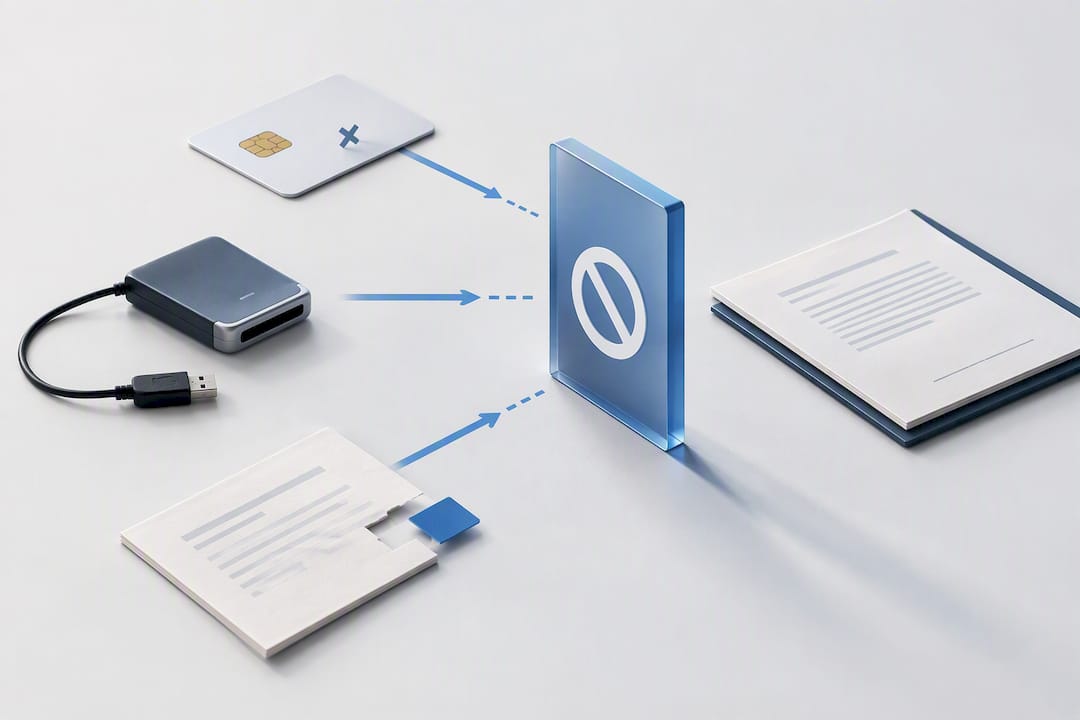
The “document changed” error is the one people find most frustrating, because it often follows something innocent, like opening the file in an editor and resaving it without meaning to alter anything. Digital signatures work by cryptographically binding the signer’s identity to the exact bytes of a file, so even a trivial resave can break that hash and invalidate the signature.
A few habits prevent most of this:
- Keep the originally signed file untouched and store copies elsewhere, never overwrite it.
- Add a timestamp to important documents so their validity can be checked years later, independent of certificate expiry.
- Confirm what format the recipient actually needs before sending, since some institutions still expect a specific signature type.
Pro Tip: For anything you might need to prove in five or ten years, request Long-Term Validation (LTV) and a timestamp at signing time. It’s a small extra step that saves a painful scramble later if a certificate has since expired.
Why field teams benefit from proper digital signature workflows
Paper signatures slow field work down: a client signs a printed sheet, someone scans it, someone else files it, and the audit trail lives across three disconnected systems, unlike the streamlined approach explained in Construction SEO Services | Prove It & Win More Bids. Replacing that chain with CMD or CC signing on a properly configured field removes most of the friction, and it ties the signed document directly into the work order it belongs to.
That link between a signature and its originating job is what actually matters for compliance. FullyOps builds signature steps into digital work order workflows so a technician’s completed job and the client’s signed confirmation sit in the same auditable record, not in a folder somewhere separate from the field service management system tracking the actual task.
Where can you find the official signing and validation portals?
Every step above eventually leads back to a handful of official sources, so it’s worth bookmarking them rather than searching each time.
- Activate CMD digital signature on Autenticação.gov.pt.
- Cartão de Cidadão signing requirements, including middleware downloads.
- Regulation (EU) 910/2014 (eIDAS), the legal text underpinning both signature types.
Digital signing as part of a bigger operational habit
Adding a signature field feels like a small technical detail until you notice how much administrative time it removes: no printing, no scanning, no lost paperwork sitting in a van’s glovebox. What’s underappreciated is how well it pairs with existing work order systems, because a signature tied to a job record is worth far more as evidence than one sitting alone in an email attachment.
Field teams that treat signing as a genuine step in their process, not an afterthought bolted on at invoicing, end up with cleaner audit trails and fewer disputes over whether a job was actually approved. FullyOps supports this by keeping signed confirmations attached to the work order management process itself, across Basic, Professional, and Advanced plans, so the signature is never disconnected from the work it confirms.
— Pedro
Sources
- Chave Móvel Digital — key authenticating Portugal’s digital services
- Regulation (EU) No 910/2014 (eIDAS)
- Ativar a assinatura digital da Chave Móvel Digital — Autenticação.gov.pt
- Assinatura digital com Cartão de Cidadão — Autenticação.gov.pt
- Ssl
FAQ
How do you add a signature to a document?
Create an interactive signature field using a PDF editor or form builder, name it, mark it as required if needed, and save a test copy. Then sign that field with a certificate, ideally through CMD or Cartão de Cidadão, to get a legally recognised result rather than just a visual mark.
How do you activate your digital signature online?
Activate the Chave Móvel Digital signature feature directly on the official Autenticação.gov.pt activation page, which asks you to confirm your phone number and set a signature PIN. Cartão de Cidadão signing is enabled separately, through the certificate confirmation steps on the same portal.
How do you sign with CMD?
Open the document containing the signature field, click that field, and choose the CMD option when prompted. Confirm the action using your signature PIN or the authorisation code sent to your device, which completes a signature recognised under eIDAS Regulation 910/2014.
Can you mix digital and handwritten signatures on the same document?
Yes, a single document can carry both a handwritten signature on one section and a cryptographic digital signature on another field, provided each field is set up to accept the right type. What matters is that any field relying on legal certainty uses a genuine certificate-based signature rather than a scanned image standing in for one.
Recommended
- Field Service: 5 Photo Attachments, Naming & Storage Stop Disputes
- Field Service Management: Optimize & Boost Efficiency
- Field Service Management: How to Structure, Manage & Motivate Your Team